LOCAL AUDIO-TO-MIDI CONVERTER
Audio to MIDI.
Turn your recording into MIDI notes you can preview and edit.
Choose a file below, compare the result, then download your MIDI.
01 Your audio
Up to 50 MiB per file. Supported formats depend on your browser.
Still not working? Let us know
Recordings use Melody unless you choose a mode. You can re-analyze the same audio after conversion.
Waveform scaled for visibility; playback volume is unchanged.
02 Your MIDI
WAITING FOR AUDIOYour MIDI preview will appear after conversion.
, or tell us about it.
Notes look wrong?
Result not right? Tell us what you tried
One Type 0 MIDI track · 120 BPM · 960 PPQ · original timing, no beat quantization. Chords stay as overlapping notes; instruments are not split into separate tracks. Check import timing and track structure. Delete or shift individual notes here before downloading; use an external music app for more detailed editing. Follow the solo voice walkthrough for a real recording and a local error to inspect.
Shape the notes Filter & transpose
Changes update your MIDI instantly. No need to analyze again.
Convert audio to MIDI in three steps
Choose your mode and file
Use Melody for one voice or a solo instrument, or Polyphonic for chords and overlapping notes. Select your audio above; conversion starts automatically.
Listen and adjust
Compare Original audio with MIDI at the same passage. Filter short fragments, delete an unwanted note or shift its pitch. Undo is available before download.
Download MIDI
Save the .mid file and open it in your music app. MIDI contains note events, rather than the recorded sound. The result uses one track and a fixed 120 BPM time base; tempo is not detected.
Free, no account required. Audio stays on your device. Files: up to 50 MiB; Melody: up to 10 minutes; Polyphonic: up to 5 minutes. Neither mode separates instruments. Dense mixes can produce extra or missing notes.
Check the result before using it
If a solo recording returns no notes, try Melody and lower its quiet-note filter. If short fragments appear, raise minimum note length gradually and compare the same passage. Filters can remove wanted notes too. Missing notes and timing edits need an external editor.
For an import that sounds too fast or slow, check the 120 BPM time base. Chords remain overlapping pitches in a single track; see track and channel limits.
Audio to MIDI FAQ
Which audio files can I convert?
MP3, WAV, OGG, FLAC and M4A can be selected. Actual decoding support depends on your browser and the codec inside the file. You can also record a solo melody with your microphone.
Does my recording leave this device?
No. Audio is processed locally. The chord model downloads to your browser when needed. The tool tries to save your latest audio and result locally; use Delete saved result to remove that copy. Optional analytics loads only with your consent and receives no audio or filenames. Privacy policy.
Will MIDI keep the original instrument sound?
No. MIDI stores pitches, timing and note events. Preview uses a synthesized sound; choose an instrument in your music app after importing. A full mix is not separated into independent instrument parts.
Archived experiment and downloadable test files
These historical controls are optional reference material. Their dates and engine versions are retained; they do not measure the current converter or real-music accuracy.
Archived filter exercise: compare two audio levels
Use these two files to separate a filter problem from a change in the musical phrase. Both contain the sequence 60, 60, 64, 67, 67, 64, 62, 60. The adjacent repeated pitches make it possible to check whether distinct attacks survive as distinct notes.
- Download reference.wav and quiet.wav, then open the converter.
- Choose Melody before selecting the reference file. In “Shape the notes,” set quiet-note filter to −40 dB, minimum note length to 40 ms and transpose to zero.
- Replace it with the quiet file. Check that Melody is selected and the settings are −40 dB, 40 ms and zero transpose. Record whether any notes remain.
- Change only the quiet-note filter to −60 dB. Compare the returned pitches and note boundaries with the generated input and the archived record below. Download your MIDI if the result contains notes.
Changing the filter updates the result without choosing the file again. These steps let you compare today's single-melody result with archived inputs and outputs; they do not reproduce the exact historical engine. They are not a recommended preset for every recording. Use Original audio and MIDI playback to compare the same passage. After the filter comparison, keep an unedited MIDI copy before deleting or changing the pitch of one note in “Fix individual notes.” Follow the individual-note walkthrough; adding missing notes or changing their timing still requires an external music app.
Archived test: two audio levels, three MIDI results
Measured September 26, 2026, 15:58 UTC. We ran the public converter in desktop Chromium 152 on macOS. The tested engine is identified by SHA-256 4853e7823aaf…; the full result record includes complete hashes for the engine, application and MIDI encoder. This is a version-specific observation.
Our generator creates eight sine-wave tones. Each has a 180 ms envelope followed by 60 ms of silence, giving a 1.92 s file. Both inputs are mono, 44,100 Hz, 16-bit PCM WAV. Their amplitude scales before PCM rounding are 0.4 and 0.004: the quiet version has a 100-times smaller amplitude, equivalent to −40 dB by 20 × log10(0.004 / 0.4). This is a generator setting and calculation, not a measured microphone level.
The browser decoded both files to 48,000 Hz in this run. Minimum note length remained 40 ms; transpose remained zero. We changed only the source level or the quiet-note filter between the rows below.
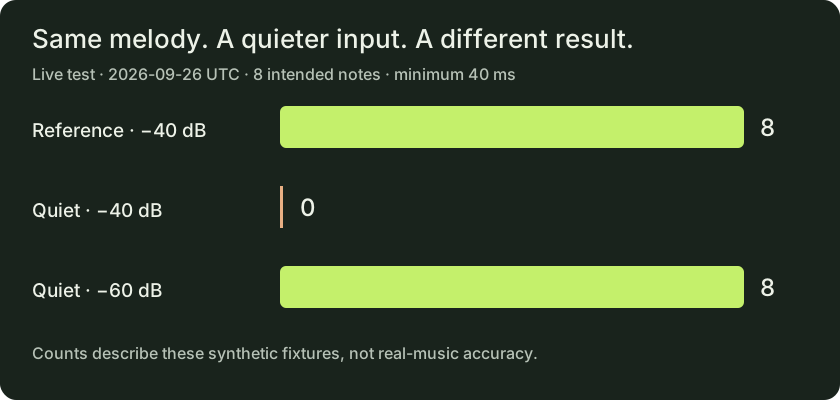
| Input | Quiet filter | Output | Pitch sequence |
|---|---|---|---|
| Reference | −40 dB | 8 notes | 60, 60, 64, 67, 67, 64, 62, 60 |
| Quiet | −40 dB | 0 notes | None; “NO NOTES” |
| Quiet | −60 dB | 8 notes | 60, 60, 64, 67, 67, 64, 62, 60 |
We also parsed the two exported MIDI files instead of relying only on the displayed count. Both contained eight note-on events in the intended pitch order, including separate events for the repeated 60 and 67 pitches. Maximum absolute onset error against our generated schedule was 2.7 ms in each file, rounded to one decimal place. Maximum absolute note-end error was 2.7 ms for the reference output and 7.7 ms for the quiet output. These are measured errors on this synthetic fixture, not estimates for voice or piano.
Matching the pitch sequence did not make the outputs identical: the reference's first note begins at 0 ms in the exported MIDI, while the quiet version's first note begins at 2.6 ms (rounded). The input's programmed onset is 0 ms. No global time shift or alignment correction was applied to these comparisons.
Download the archived inputs and outputs
- Download the reference audio · Download the quiet audio
- Download reference MIDI at −40 dB · Download quiet MIDI at −60 dB
- Download the Python audio generator
- Read browser results and version hashes · Read the parsed MIDI event check · Read reproduction and reuse notes
There is no downloadable MIDI for the zero-note row: the converter disabled export for that result. We did not manufacture an empty output file. Our generated samples and recorded outputs may be reused to repeat this experiment.
This test uses synthesized sine tones with silent gaps. It does not test singing, piano sustain, room noise, overlapping notes, phone microphones or DAW import. A different browser or engine version may produce different boundaries.
Other inputs: MP3 to MIDI · WAV to MIDI